


Create and manage events
Create and manage events
The Events app lets you schedule group sessions, webinars, and meetings within your program. Events support single or recurring schedules, attendance tracking, reminders, and post-event feedback.
Create an event
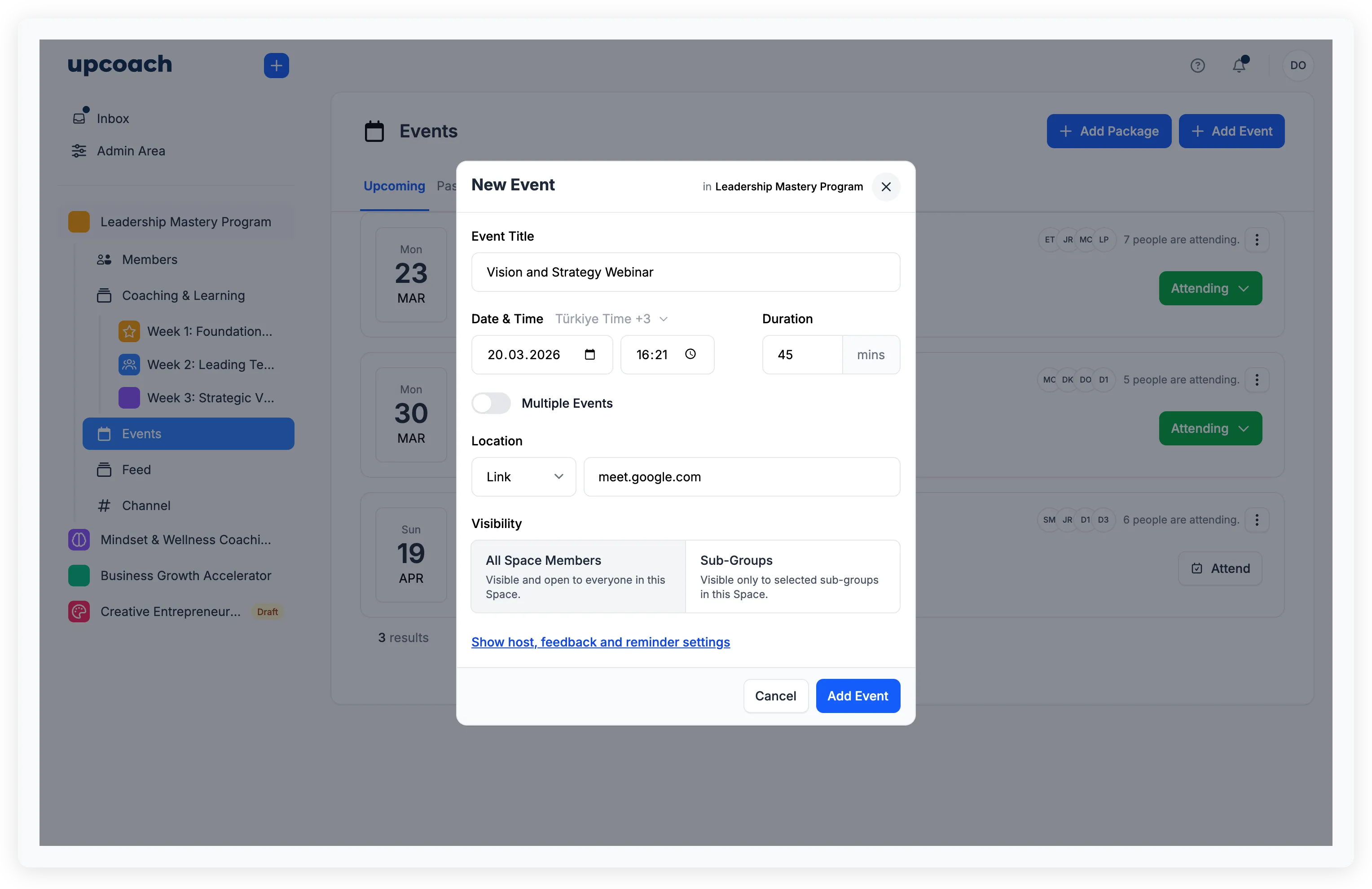
- Open your program and click Events in the sidebar (or use the + button in the header and select Event)
- The New Event modal opens with these fields:
- Event Title — Name of the event
- Date & Time — Start date, start time, and duration in minutes
- Timezone — Defaults to your timezone
- Location — Choose Link (with a meeting URL) or In Person (with an address)
- Visibility — All Space Members or Sub-Groups (restrict to specific groups)
- Expand Show host, feedback and reminder settings to optionally set:
- Hosts — Assign one or more co-hosts. The host dropdown only shows members who hold a space-level role in this program (Owners and Admins without a space role don’t appear).
- Reminders — Up to 3 notification reminders (minimum 15 minutes before)
- Feedback — Toggle to request feedback after the event
- Click Add Event
Who can create and edit events
- Program Admins and Program Facilitators in a program can create, edit, and delete its events.
- Owners and Admins can do the same through Admin Area > Spaces.
- Event Settings (the gear icon inside an event) is visible to Program Admins and Facilitators. Participants and Sponsors don’t see it.
- Participants can RSVP and attend. Sponsors can see the event listing but don’t receive reminders or RSVP.
Recurring events
Toggle Multiple Events in the creation modal to create a series that repeats on a schedule. Recurrence options include:
- Daily — Every N days
- Every weekday — Monday through Friday
- Weekly — On a specific day each week
- Monthly — Same date each month, or a pattern like “second Tuesday of every month”
- Annually — Same date each year
- Custom — Repeats every N weeks or months on specified days
Each series can have up to 24 events. All events in a series are linked — you can update or delete individual events, or apply changes to “this and all future events.”
Event locations
Events support two location types:
- Online — Provide a meeting link (Zoom, Google Meet, etc.) that participants can click to join
- In person — Describe the physical location
Attendance tracking
RSVP
Participants can respond to events:
- Attending — Confirmed attendance
- Not attending — Declined
If a participant hasn’t responded, they receive a reminder 3 hours before the event.
Recording attendance
After an event, admins can manually record who actually attended:
- Open the event.
- Mark participants as attended or not attended.
This data is available in attendance reports.
Event reminders
Set up to 3 reminders per event. Reminders can be set in minutes, hours, days, or weeks before the event starts (minimum 15 minutes). Participants also receive an automatic reminder 3 hours before the event if they haven’t responded to the RSVP.
Event feedback
When feedback is enabled, participants receive a notification 5 minutes after the event ends prompting them to submit feedback. Feedback responses are available in event reports.
Event recordings
After a session, you can attach a recording:
- Open the event.
- Upload or link the recording.
Participants can watch the recording directly from the event.
Calendar integration
If participants have connected their calendar (Google Calendar or Outlook), events are automatically pushed to their personal calendar. Updates and cancellations sync automatically.