


Invite participants to your program
Invite participants to your program
There are two steps to getting participants into a program: first invite them to your organization, then add them to a specific program. You can also do both at once.
Invite to your organization
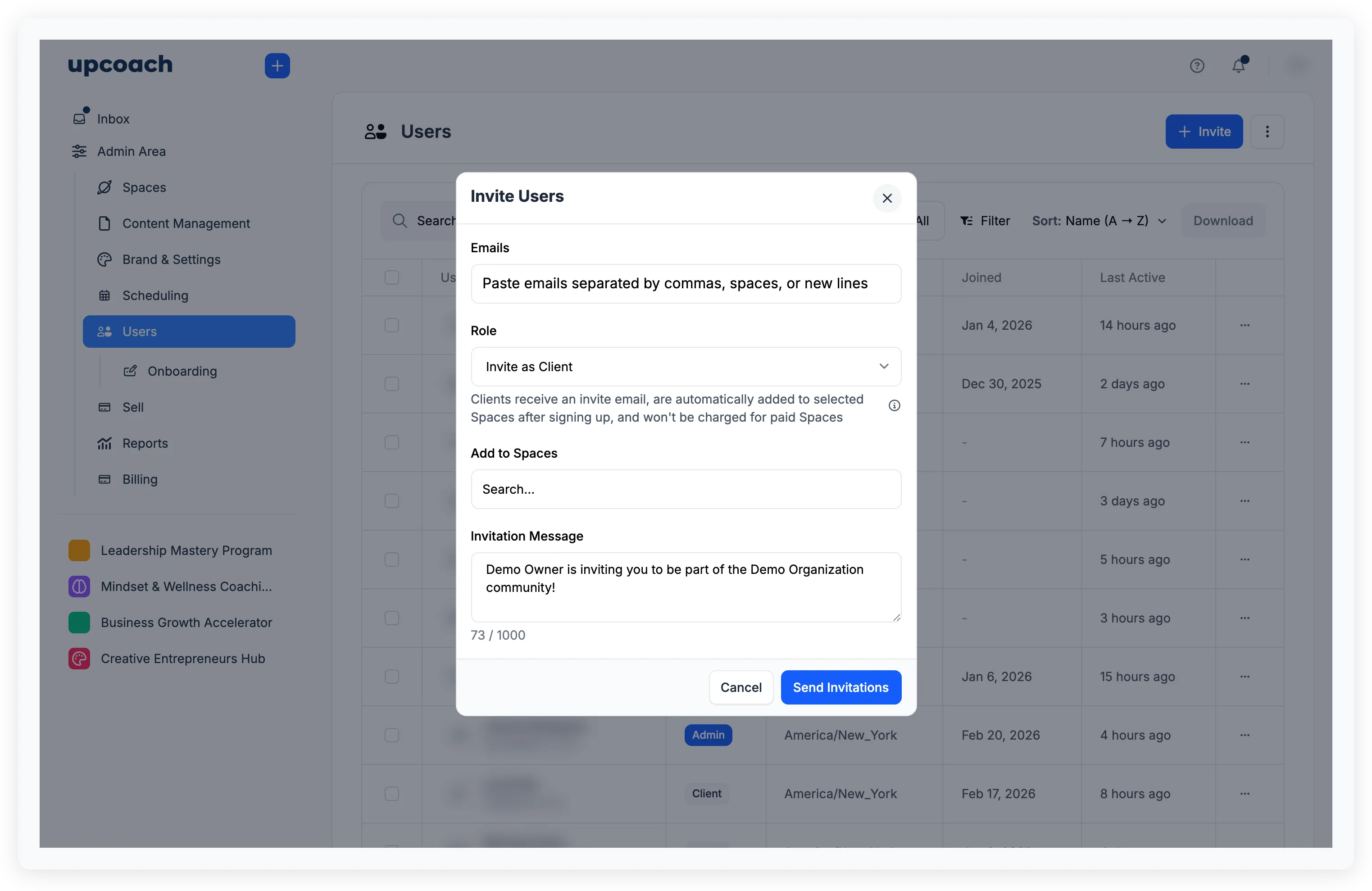
Open Admin Area > Users and click Invite in the header. The Invite Users modal has these fields:
- Emails — Enter up to 20 email addresses at a time. Paste a comma-separated or newline-separated list.
- Role — Pick one of the seven roles. Most invites to your programs are Participant; for team members helping run programs, see the table below.
- Spaces — If you picked a space-level role (Program Admin, Facilitator, or Sponsor), pick at least one program. For Participants, picking programs is optional but recommended — Participants you add this way skip payment for paid programs.
- Duration — Only appears when you pick Implementation Admin. Choose 1 month, 2 months, 3 months, 6 months, or Forever.
- Invitation Message — Optionally customize the message.
Click Send Invitations. Each person gets an email with a link to join. New users create an account first; existing upcoach users are added directly.
Pick the right role
| Role | When to use it |
|---|---|
| Participant | The learners going through your program. |
| Program Admin | The person running a specific program. Requires picking programs. |
| Program Facilitator | Day-to-day delivery for a program. Requires picking programs. |
| Program Sponsor | Read-only observer for a program. Requires picking programs. |
| Admin | Full org access except billing and Stripe. |
| Owner | Full access including billing and Stripe. |
| Implementation Admin | Time-limited assistant role. Restricted to allowed email domains. |
For a deeper look at each, see Understand roles and permissions.
Seat limits
Inviting an Admin, Owner, Program Admin, Facilitator, or Sponsor uses a seat. Participants and Implementation Admins don’t. If your batch would push you over your seat limit, the entire batch is rejected with a No seats available message and an upgrade link.
See Seats and billing for team roles.
Add existing members to a program
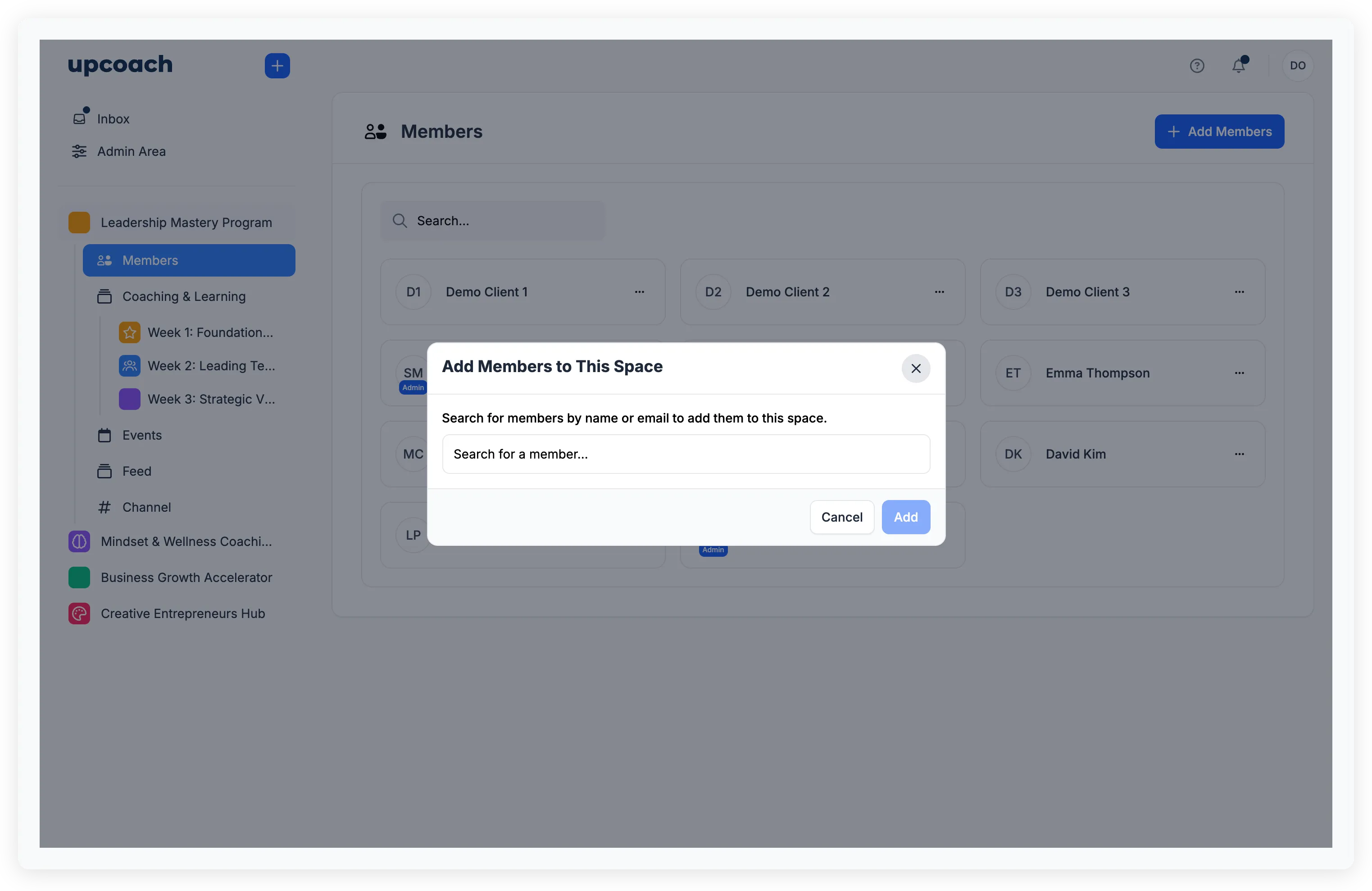
If someone is already in your organization but not yet in a specific program, you can add them from within the program:
- Open your program and go to Members in the sidebar
- Click Add Members
- Search for members by name or email
- Pick the space-level role they should have (Participant, Facilitator, Program Admin, or Sponsor)
- Click Add Selected
This does not send a new invitation email — it adds them to the program immediately. Some role choices (Facilitator, Program Admin, Sponsor) may use a seat — the modal warns you before the change goes through.
Resend invitations
If someone hasn’t accepted their invitation yet:
- Individual: Open Admin Area > Users, find the user, open their row menu (three dots), and click Resend Invitation
- All pending: In Admin Area > Users, open the header dropdown menu and click Resend Invitations to resend to everyone who hasn’t accepted yet
What participants see
When a participant clicks the invitation link, they land on a page that says “You’ve been invited to join” with your organization name. New users enter their name and accept the terms. Then they click Join [Organization Name] and they’re in.