


Publish your program
Publish your program
Programs start in Draft status. While in draft, only admins can see and access the program. Participants won’t see it in their sidebar or be able to open it until you publish.
How to publish
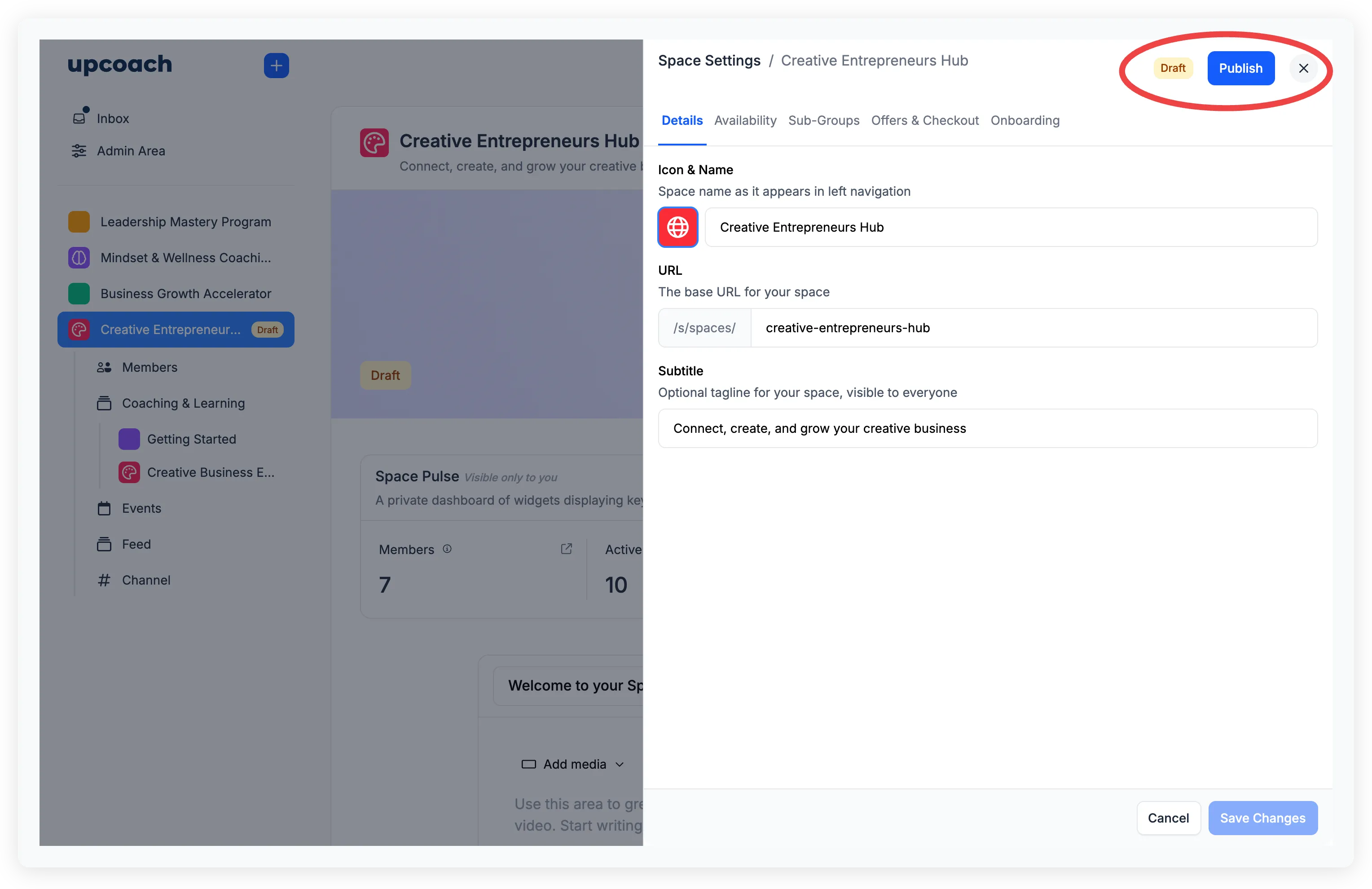
- Open your program
- Hover over the program name in the sidebar and click the ellipsis menu (three dots)
- Click Publish at the bottom of the menu
A confirmation dialog appears explaining what happens when you publish:
- Members will see the program in their navigation and can open it
- Your checkout page will accept new sign-ups
- Members may start receiving notifications
Click Publish to confirm. The status badge changes from Draft (amber) to Live (green).
There are no prerequisites — you can publish at any point, even with an empty program. You can also continue editing after publishing.
Unpublish a program
If you need to take a program offline:
- Open Space Settings
- Click the Unpublish button
The confirmation dialog explains what happens:
- Members won’t see the program in their navigation or be able to open it
- All notifications from this program will stop
- Your checkout page stays visible but shows a “Coming Soon” label instead of the sign-up action
- No content is deleted — you can republish at any time and existing members regain access automatically
Start and end dates
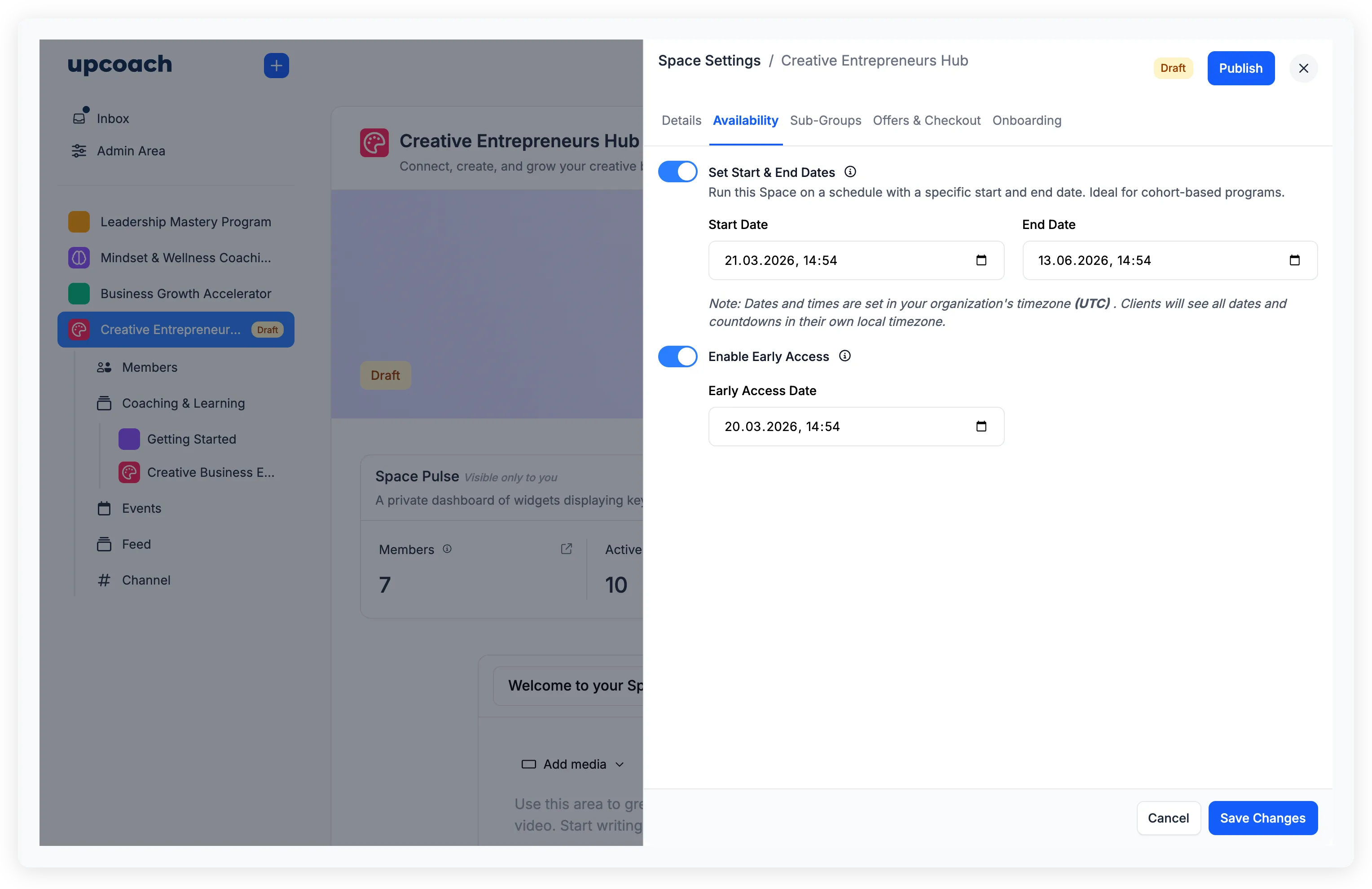
In Space Settings > Availability, you can optionally set a schedule for your program:
- Start & End Dates — Toggle on to run the program on a schedule. Ideal for cohort-based programs. Participants are notified when the program starts
- Early Access — Toggle on to let enrolled participants access parts of the program (like the members directory and available activities) before the official start date. This won’t override sections with a specific future release date
These dates are informational and trigger notifications, but they don’t lock participants out of the program. Participants can still access content after the end date.