


Create your first program
Create your first program
A program is where you deliver your work in upcoach — your content, events, community, and progress tracking all live together in a single space. You can start from a program type template or build from scratch.
Start the wizard
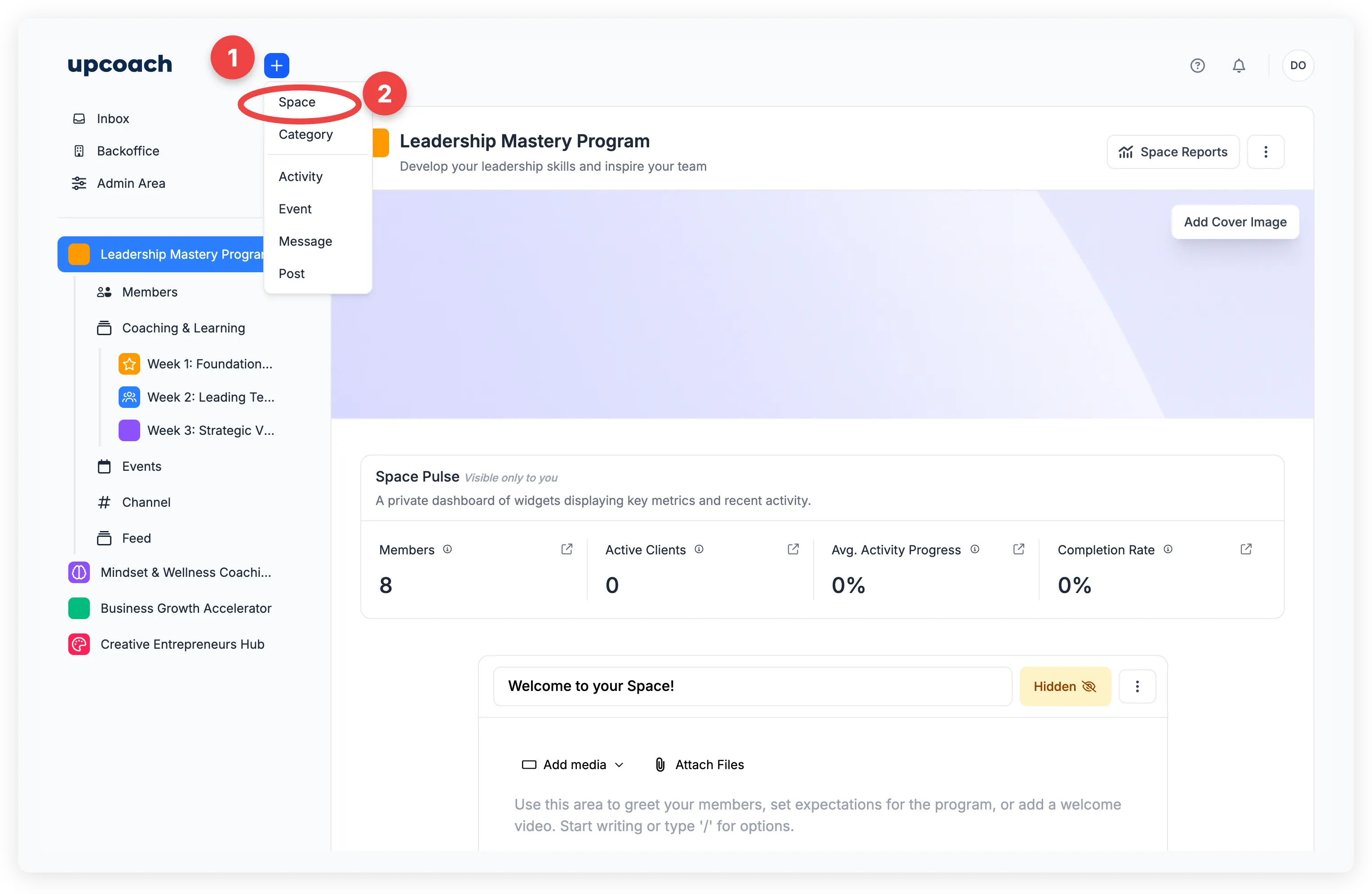
Click the + button in the header and select Space. This opens the program creation wizard, which has two steps: Choose Type and Configure.
Option 1: Use a program type
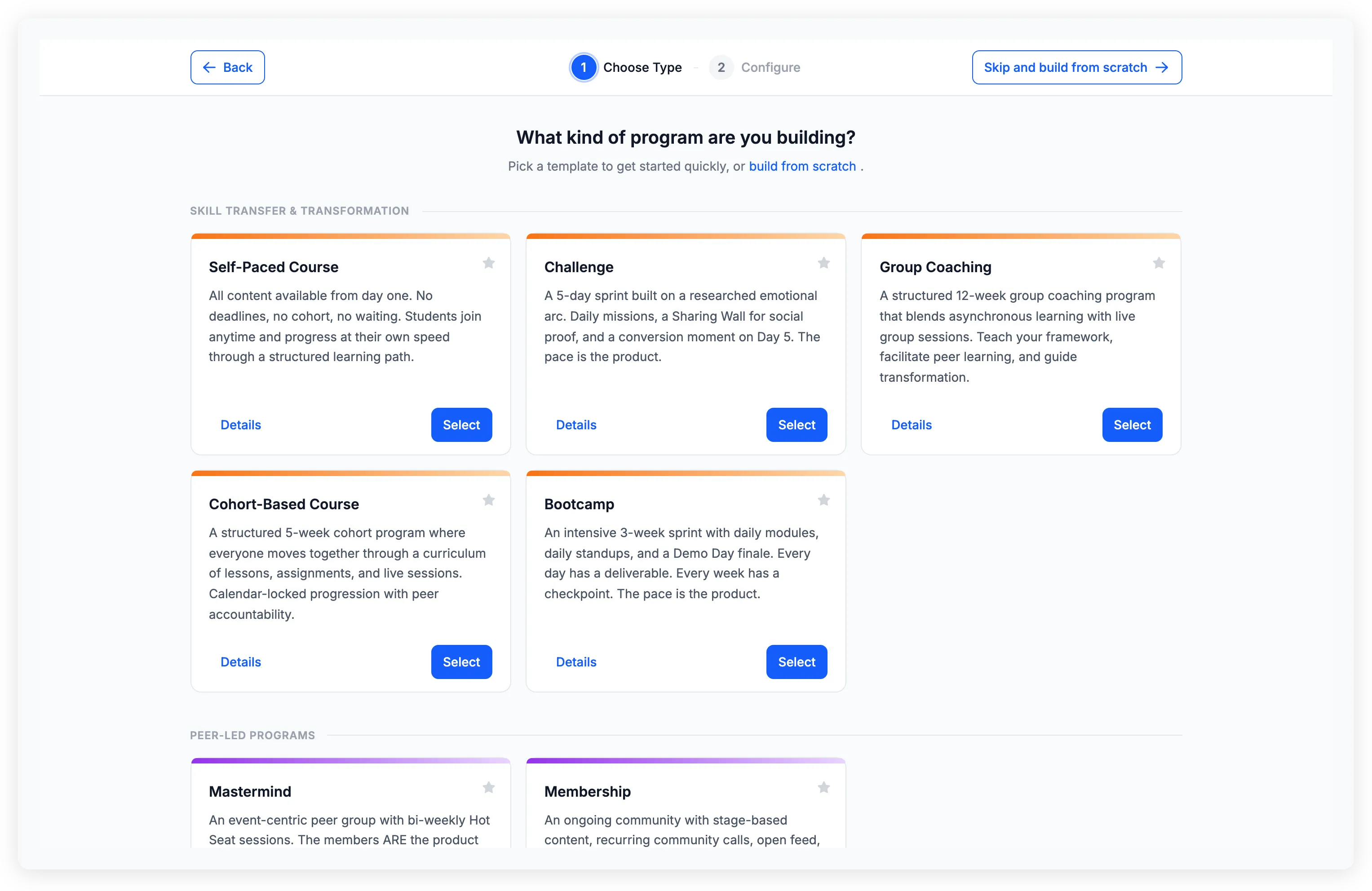
The first step asks “What kind of program are you building?” and shows a gallery of program types organized by category. Each type card includes a short description and two buttons: Details and Select.
Click Details to see a full breakdown of what the wizard will create for you — the sections, activities, events, and channels that come pre-built. When you’re ready, click Use This Template.
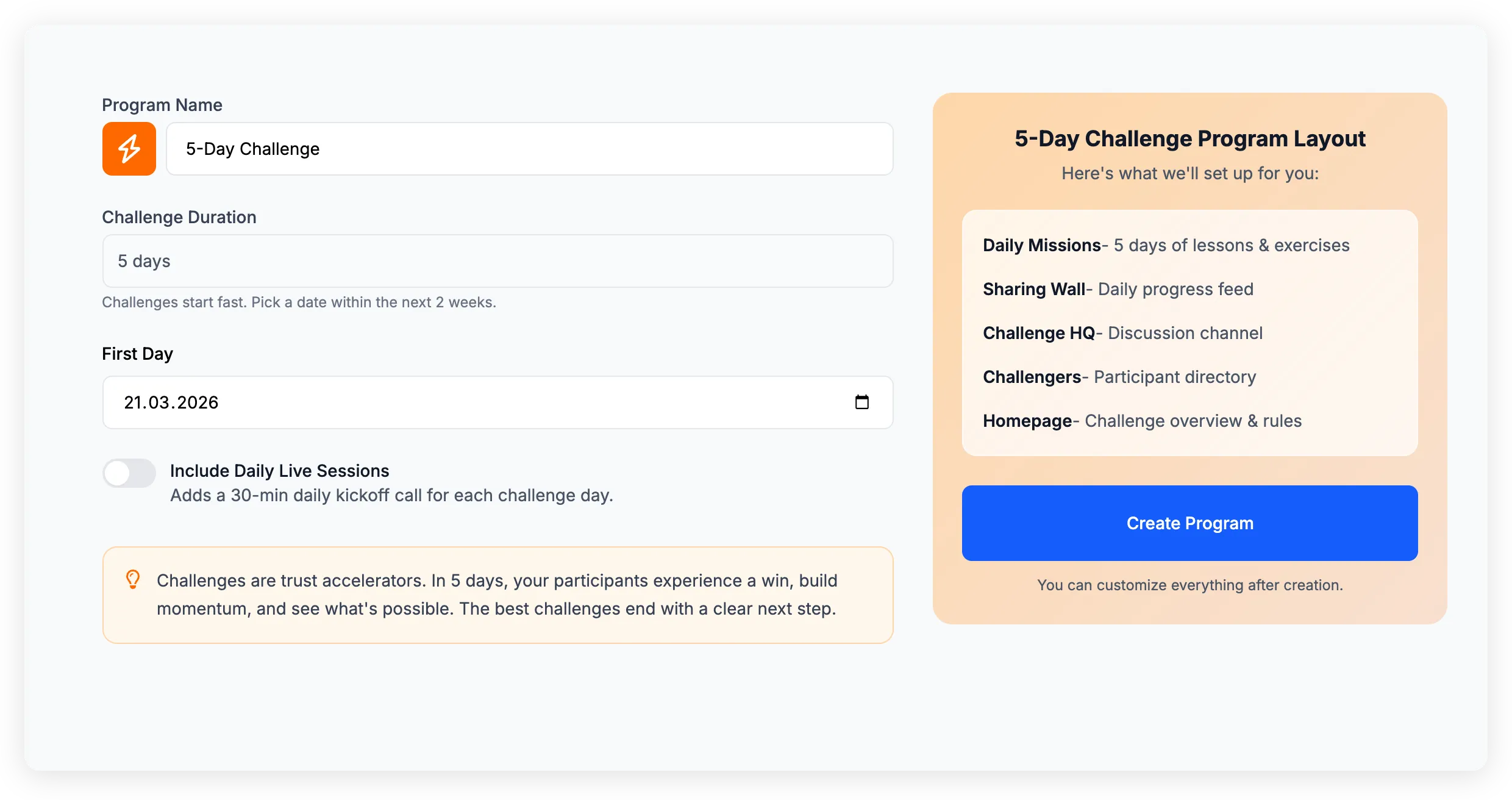
The Configure step shows a form on the left and a summary panel on the right. Fill in:
- Icon and color — Pick a visual identity for your program
- Program name — What participants will see
- Type-specific fields — Depending on the type, you may be asked for a start date, call frequency, session duration, or other details
The summary panel on the right shows what the wizard will set up for you. When everything looks good, click Create Program.
After a moment, you’ll land in your new space with a welcome message and a Setup Checklist in the bottom-right corner. The checklist walks you through what to do next — like adding participants, connecting your calendar, or reviewing your curriculum.
Option 2: Build from scratch
If you’d rather start empty, click Skip and build from scratch in the wizard header, or use the build from scratch link on the type selection page.
You’ll go straight to the Configure step with just the basics:
- Icon and color
- Program name
Click Create Program and you’ll get an empty space. From there, add sections, activities, and apps as you go.