


Build your curriculum
Build your curriculum
The Coaching & Learning app is where you build your program’s content. It uses a three-level structure: sections contain modules, and modules contain activities.
Who can build curriculum. Sections, modules, and the program structure are managed by Program Admins and organization-level admins (Owner, Admin, Implementation Admin). Facilitators can add existing activities from the library but can’t create modules or change the program’s structure. Sponsors and Participants don’t see these controls. See Program Admin, Facilitator, and Sponsor roles.
| Level | What it is | Example |
|---|---|---|
| Section | A top-level group, like a chapter or week | ”Week 1: Foundations” |
| Module | A group of related activities within a section | ”Goal Setting” |
| Activity | A single piece of content or exercise | ”Define Your Vision” |
Sections
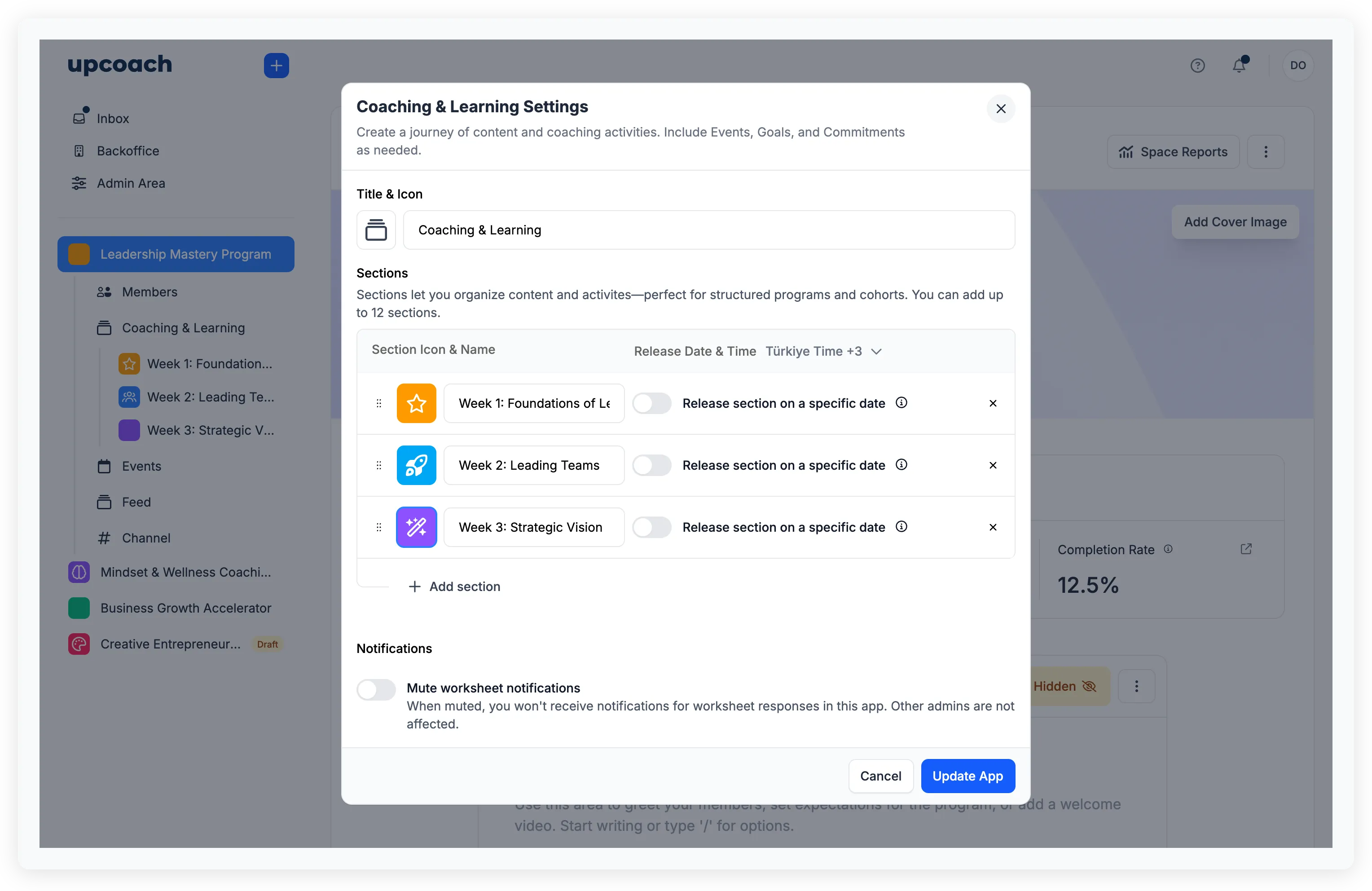
Sections are managed in the Coaching & Learning app settings. Click Coaching & Learning in the sidebar, then open its settings to add, edit, or reorder sections.
Click Add section to create a new one. Each section has:
- Icon & Color — A visual identity for the sidebar
- Section name — What participants see in the navigation
- Release Date & Time — Optionally schedule when participants can access this section. Until the release date, participants see a countdown instead of the content
- Show Progress Bar — Toggle whether participants see their completion progress
- Show Who Completed — Toggle whether the top completers are shown
You can have up to 12 sections per Coaching & Learning app. Drag and drop to reorder them.
You can also edit a section later by hovering over it in the sidebar and clicking Edit from the dropdown menu.
Modules
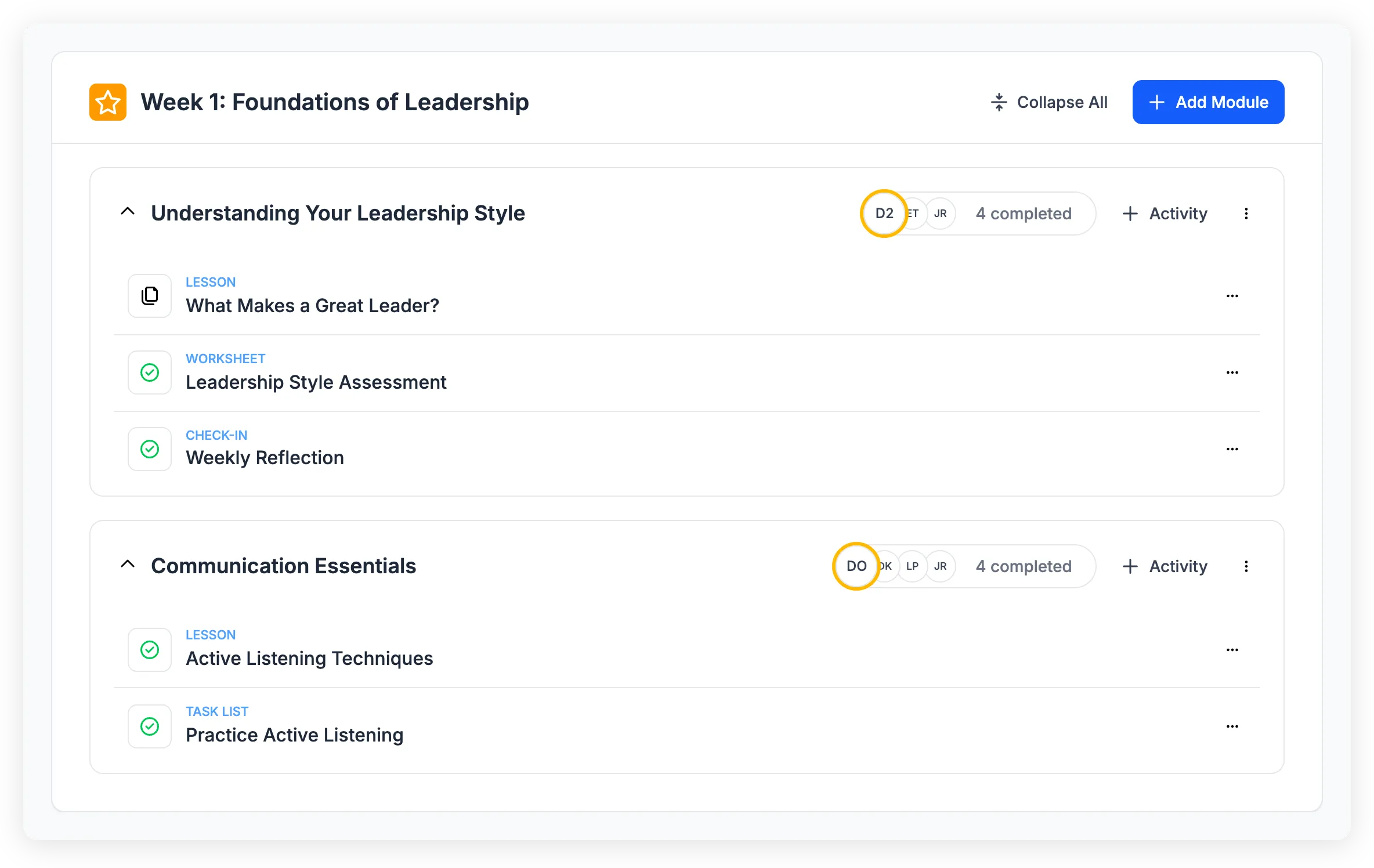
Inside a section, click Add Module to create a module. Modules group related activities together — you can have multiple modules per section.
Each module can optionally have required modules — other modules that participants must complete first. If a required module isn’t completed, the module appears locked. To set this up, edit the module and toggle Required modules enabled, then select which modules are prerequisites.
Drag and drop modules to reorder them within a section.
Activities
Inside a module, add activities by clicking the add button. This opens the activity library where you can:
- Create a new activity by selecting a type: Lesson, Worksheet, Task List, or Check-In
- Reuse an existing activity from your activity library
Each activity type serves a different purpose — see Understand activity types for details.
Drag and drop activities to reorder them within a module.
Activity Settings
When you open an activity, a Settings sidebar lets you configure Participant Visibility, response settings, and other per-activity options. Only Program Admins and organization-level admins see this sidebar. Facilitators can run the activity and view its content but can’t edit Activity Settings — that’s intentional.