


Set up your organization
Set up your organization
Your organization is where everything lives in upcoach — your programs, participants, billing, and settings. Getting the basics in place means participants see a polished, branded experience the moment they log in.
Organization details
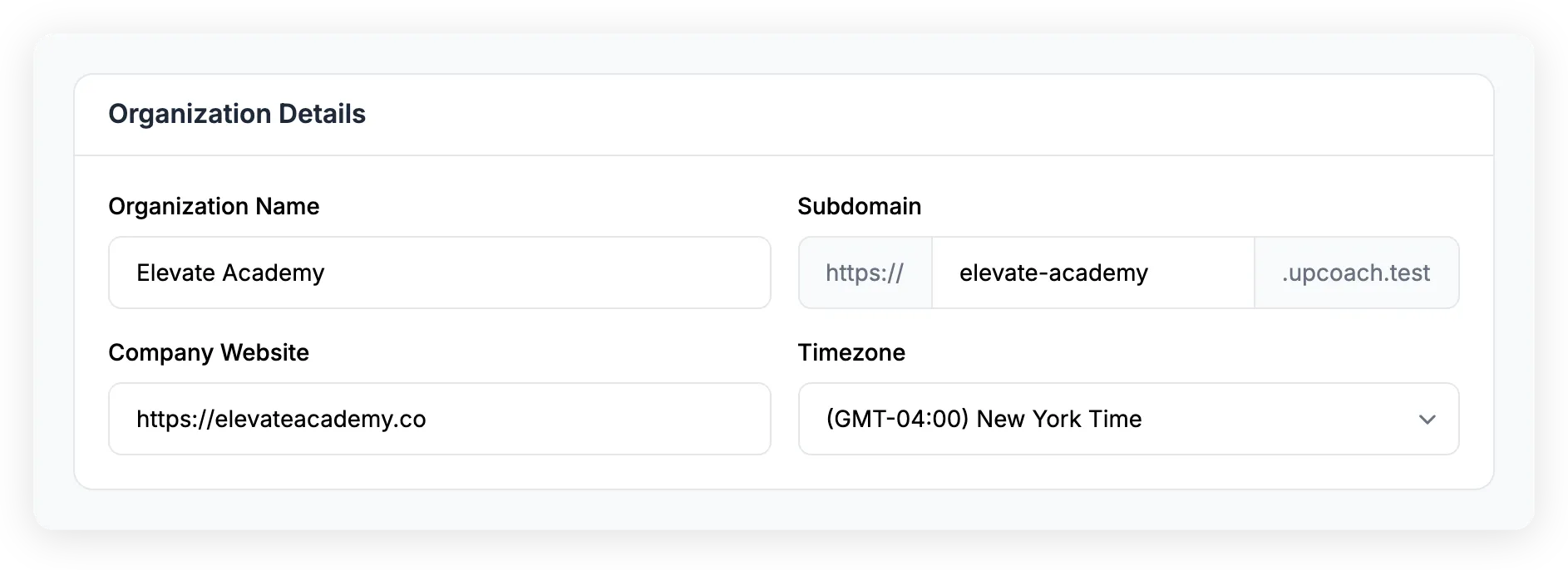
Open Admin Area > Brand & Settings from the sidebar. The Organization Details card has four fields:
- Organization name — What participants see when they access your programs
- Subdomain — Your unique URL (e.g.,
yourorg.upcoach.com). This is how participants reach your programs - Company website — A link back to your main website
- Timezone — Your organization’s default timezone. Most features like events and content releases use each user’s own timezone, but the organization timezone is used as a fallback when no other timezone is set
Theme
Upgraded plan required — This feature may not be available on all plans.
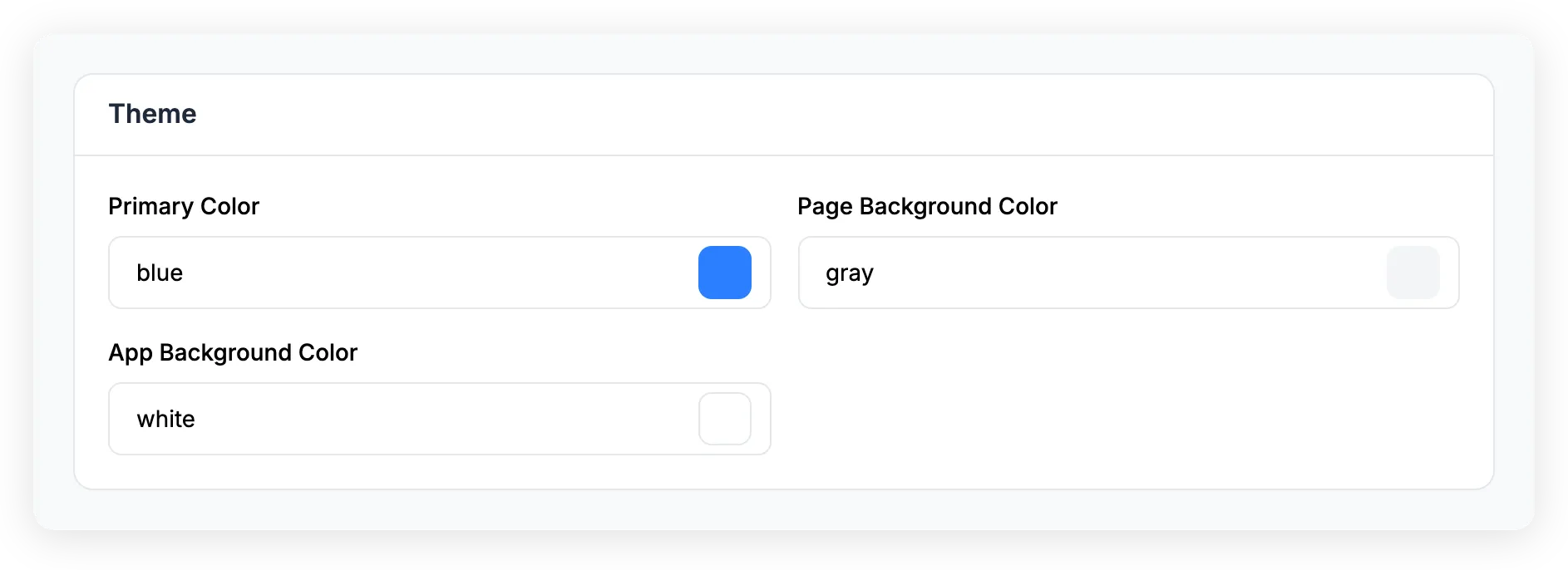
The Theme card lets you change the colors of your organization:
- Primary color — Used for buttons, links, and accents throughout your programs
- Page background color — The color behind your content areas
- App background color — The main application background
You can reset all colors back to the defaults with the Reset theme to default link.
Brand
Upgraded plan required — This feature may not be available on all plans.
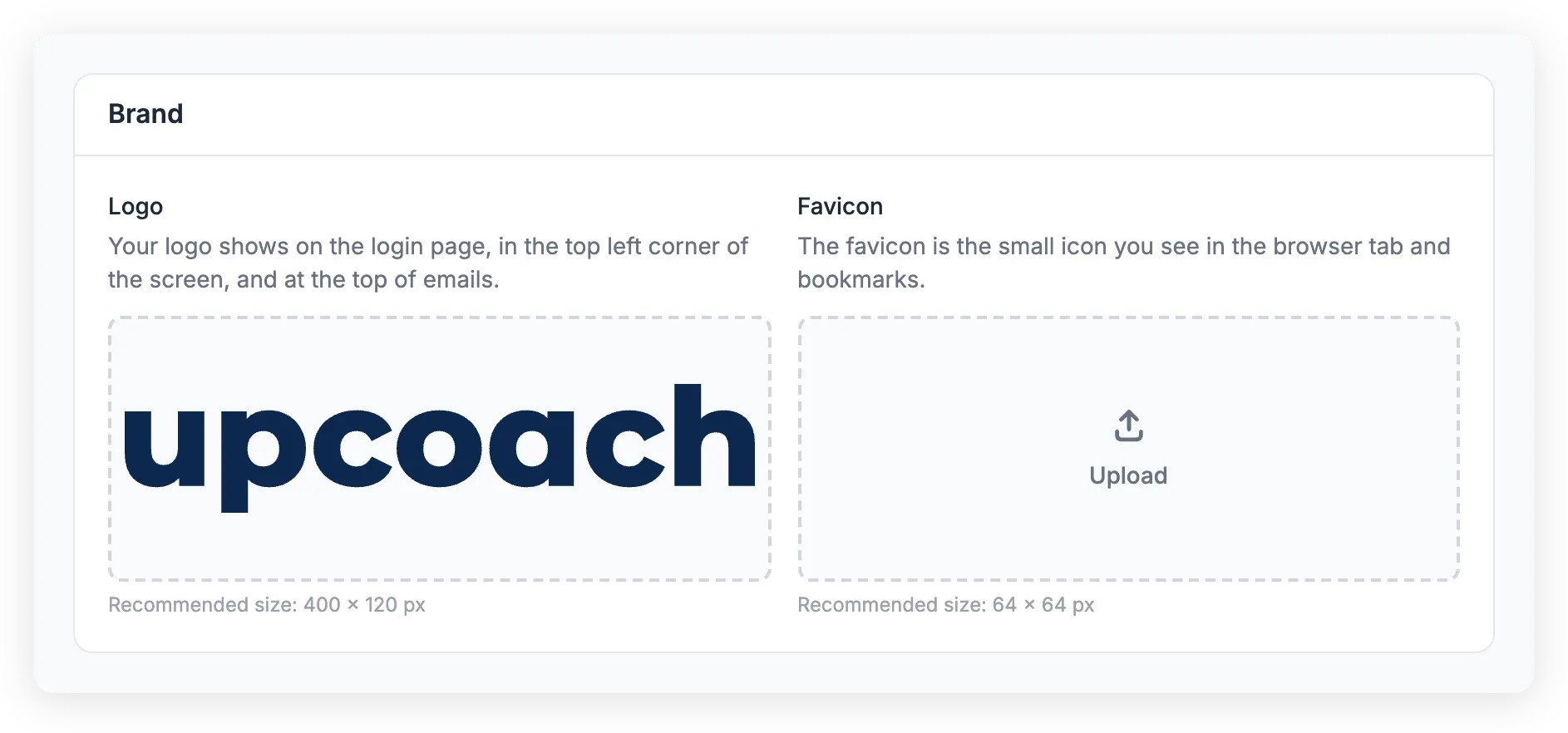
The Brand card is where you upload your logo and favicon:
- Logo — Shows on the login page, in the top-left corner of the screen, and at the top of emails. Accepts JPEG, PNG, or HEIC. Recommended size: 400 x 120 px
- Favicon — The small icon in browser tabs and bookmarks. Recommended size: 64 x 64 px
After uploading, you can crop and adjust your image before saving.
Custom domain
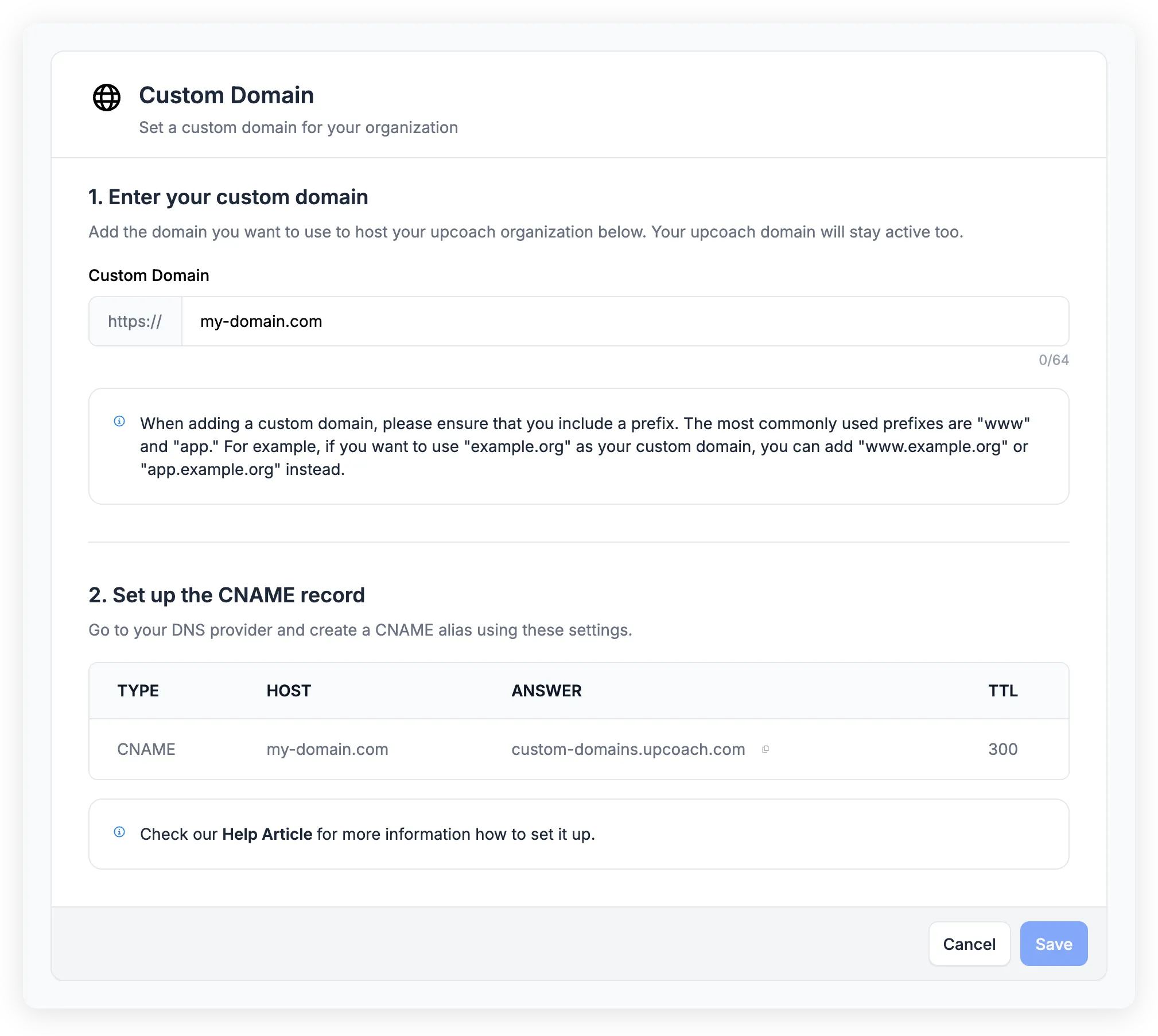
Upgraded plan required — This feature may not be available on all plans.
You can connect a custom domain (e.g., coaching.yourcompany.com) so participants access your programs under your own brand. Open Admin Area > Brand & Settings > Custom Domain to set this up.
Setting up a custom domain involves entering your subdomain in upcoach and adding a CNAME record at your DNS provider. For step-by-step instructions — including provider-specific guides for Cloudflare, GoDaddy, Namecheap, and more — see Set up a custom domain.