


Duplicate a program
Duplicate a program
Duplication copies your entire program structure — content, apps, settings, and dates — into a new program. It’s the fastest way to run another cohort or create a variation of an existing program.
How to duplicate
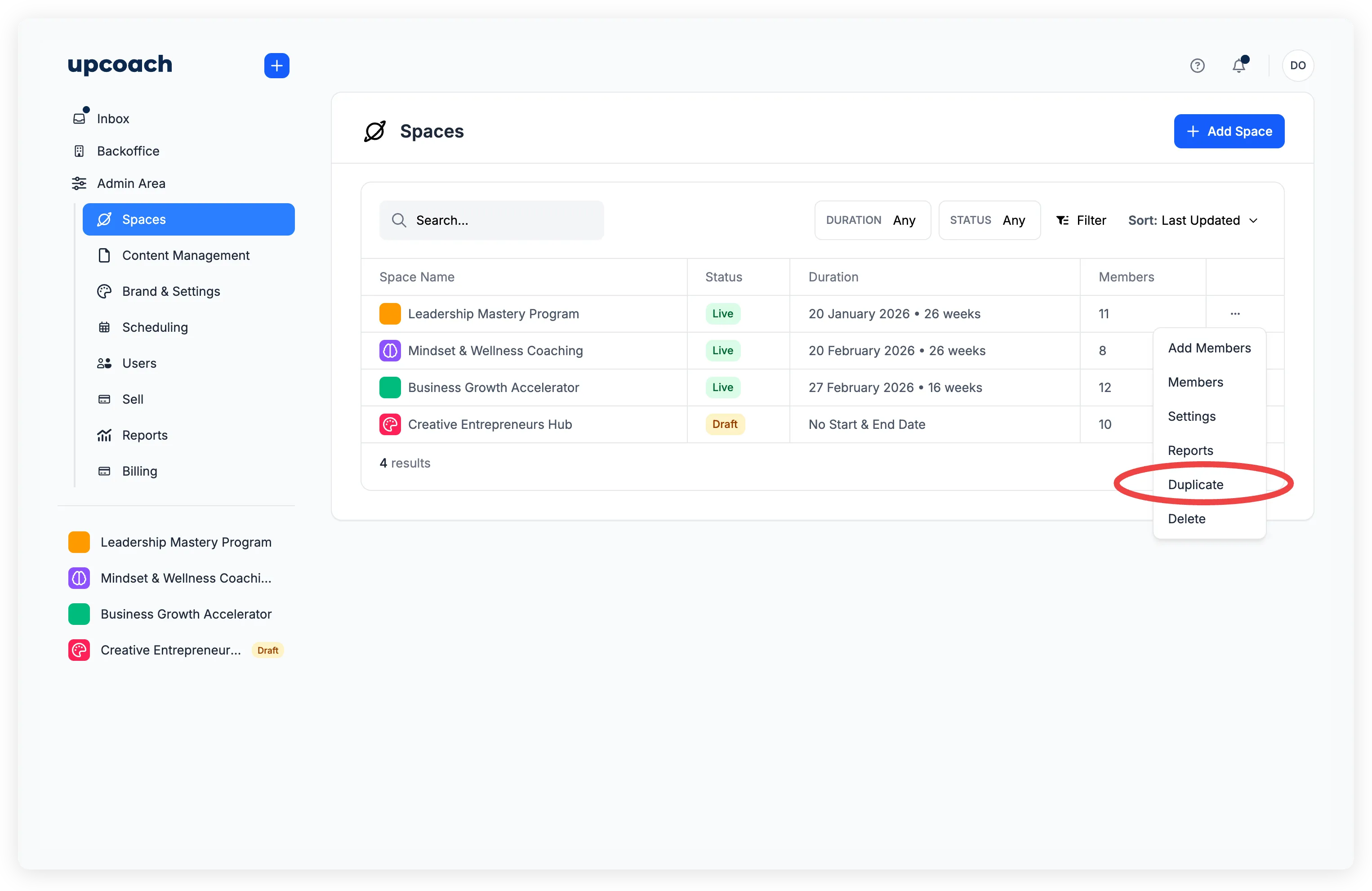
There are two ways to start:
- From Admin Area > Spaces — click the ellipsis menu (three dots) on any program row and select Duplicate
- From the sidebar — hover over a program name, click the ellipsis menu, and select Duplicate
Step 1: Basic settings
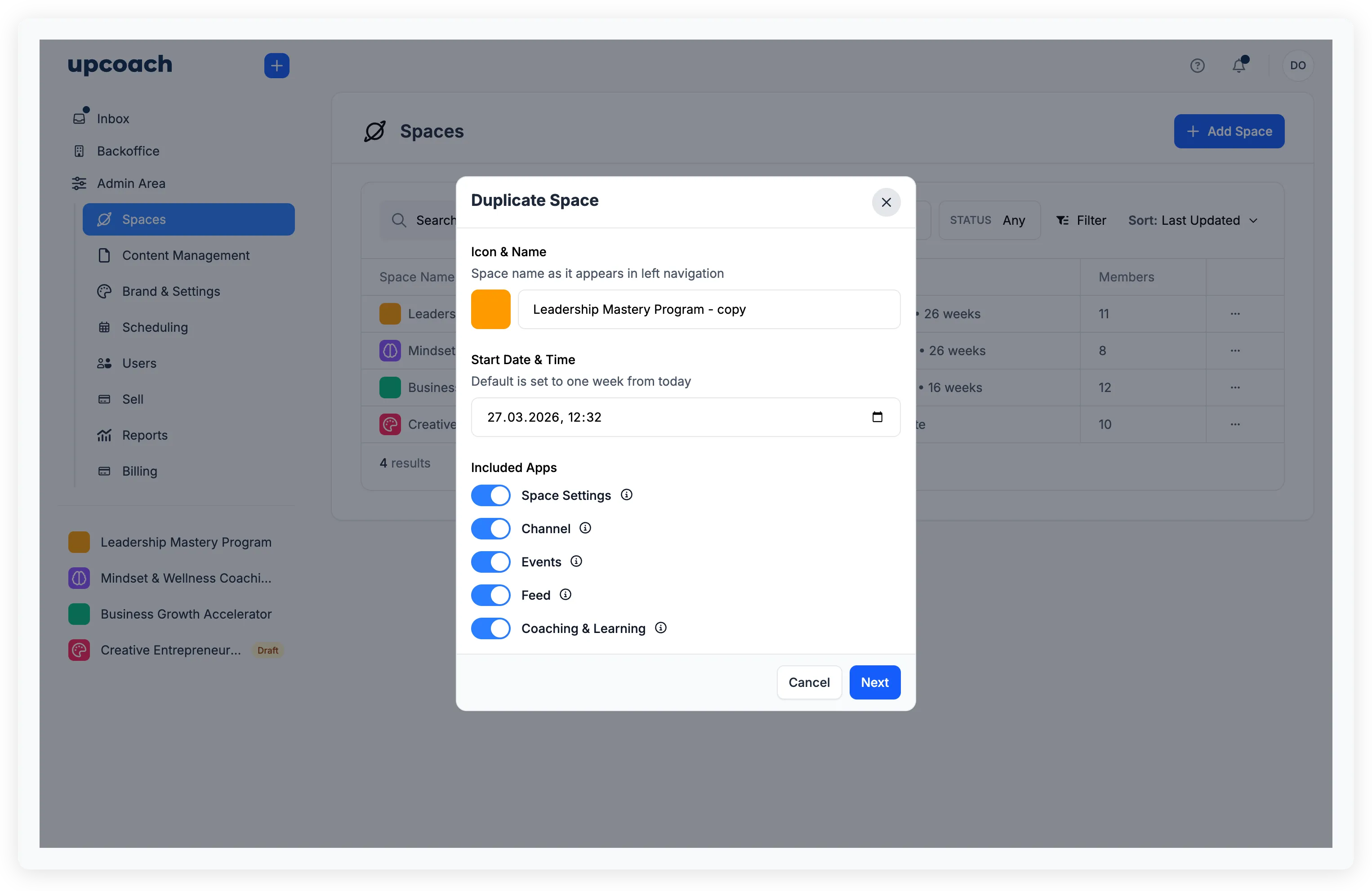
The duplication modal opens with:
- Icon & Name — Defaults to the original name with ”- copy” appended. You can change it
- Start Date & Time — Set a new start date for the duplicate (defaults to one week from today). Only shown if the original program had a start date
- Included Apps — Toggle which apps to copy. Space settings, folders, links, and sub-groups are always included. Each app (Coaching & Learning, Events, Channels, etc.) can be toggled on or off
Step 2: Configure dates
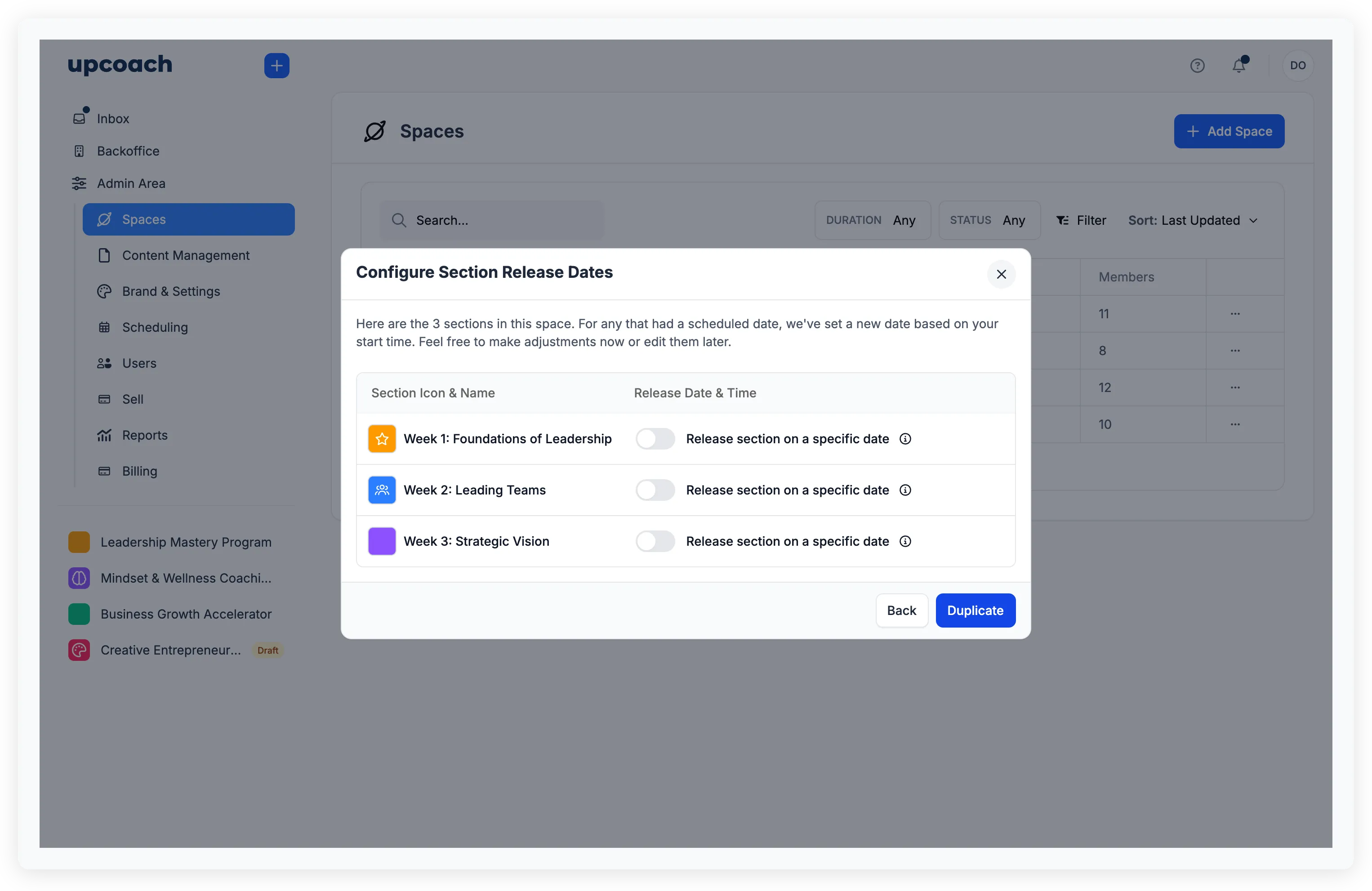
If you include Coaching & Learning or Rituals, a second step appears where you can review and adjust dates:
- Section release dates — Automatically recalculated based on your new start date. Each section shows its new date, and you can override any of them
- Ritual start dates — Pick from presets (Today, Tomorrow, Next Week) or set a custom date
Click Duplicate to create the new program.
After duplication
A success screen confirms the copy is ready with two options: Stay Here to remain on the current page, or View Space to jump into the new program.
What gets duplicated
- Program name, icon, and color
- All curriculum sections, modules, and activities (with content)
- Section release dates (recalculated)
- Welcome content and cover image
- Sub-groups
- App configurations and sidebar order
- Session packages and event settings (for the Events app)
- Ritual instances with recalculated start dates (for Rituals)
What does NOT get duplicated
- Participants — the new program starts empty (only you are added)
- Participant progress, responses, and completed worksheets
- Paused ritual states — rituals start fresh
How dates are recalculated
When you set a new start date, upcoach shifts all section release dates by the same time offset. For example, if a section originally released 6 days after the program start, it will release 6 days after your new start date.
If the original program had no start date, the first section is set to one week from now, and the rest are spaced relative to it.
You can always override individual dates in Step 2 before confirming.